When Learning Objectives and Sharable Content Objects (SCOs) are reused, any changes made to them are applied to all reused elements. Learn here how to duplicate a Learning Objective and the associated SCOs so you can use them without modifying the original.
Create a copy of the desired SCOs
First, duplicate the SCOs you want to copy. This step is performed independently of the Learning Objective.
Please note: With a duplicate, you can subsequently edit the text of the SCO without changing the original text. However, reusable elements within the SCO (media assets, questions, glossary terms, references) are not duplicated but reused. If you would like to make changes to these elements that should not affect other uses, you can create a new element and link it within the duplicated SCO.
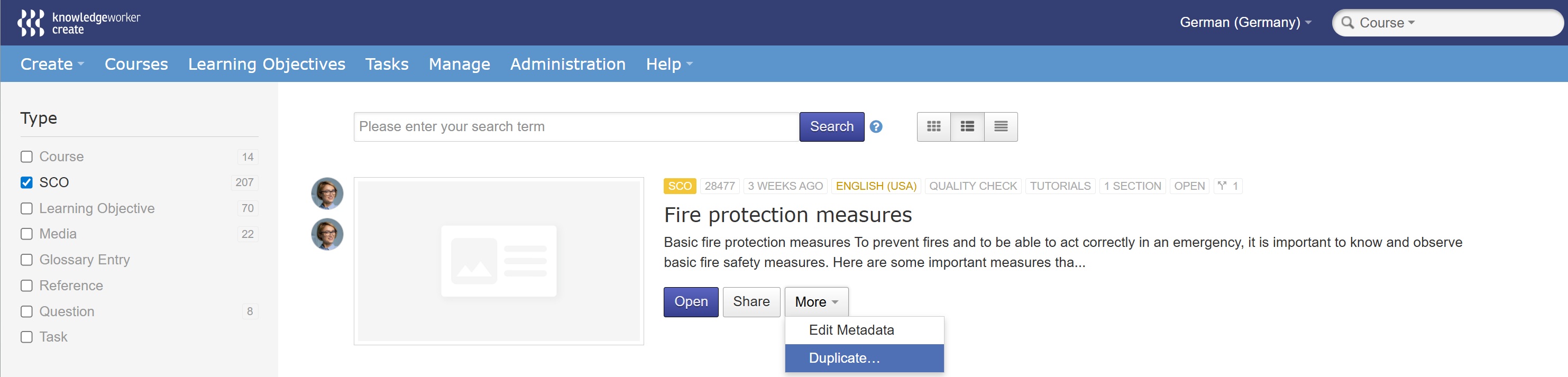
- Search for the SCO you want to copy using the search function.
- Open the More menu for the SCO and select Duplicate. Then decide in which languages the SCO should be copied.
- If necessary, assign a meaningful title to the copied SCO by switching to the editing mode using Edit.
Link the Learning Objective with the corresponding SCOs in the course
Open the course you want to edit. Here, first add a new Learning Objective and then add the copied SCOs:
- On the left, switch to the Sitemap tab and start adjusting the course structure with Edit.
- At the bottom of the course structure, add a new Learning Objective using Add Chapter and assign a title. You can change the position of the Learning Objective by dragging it using the double-dotted line on the left side.
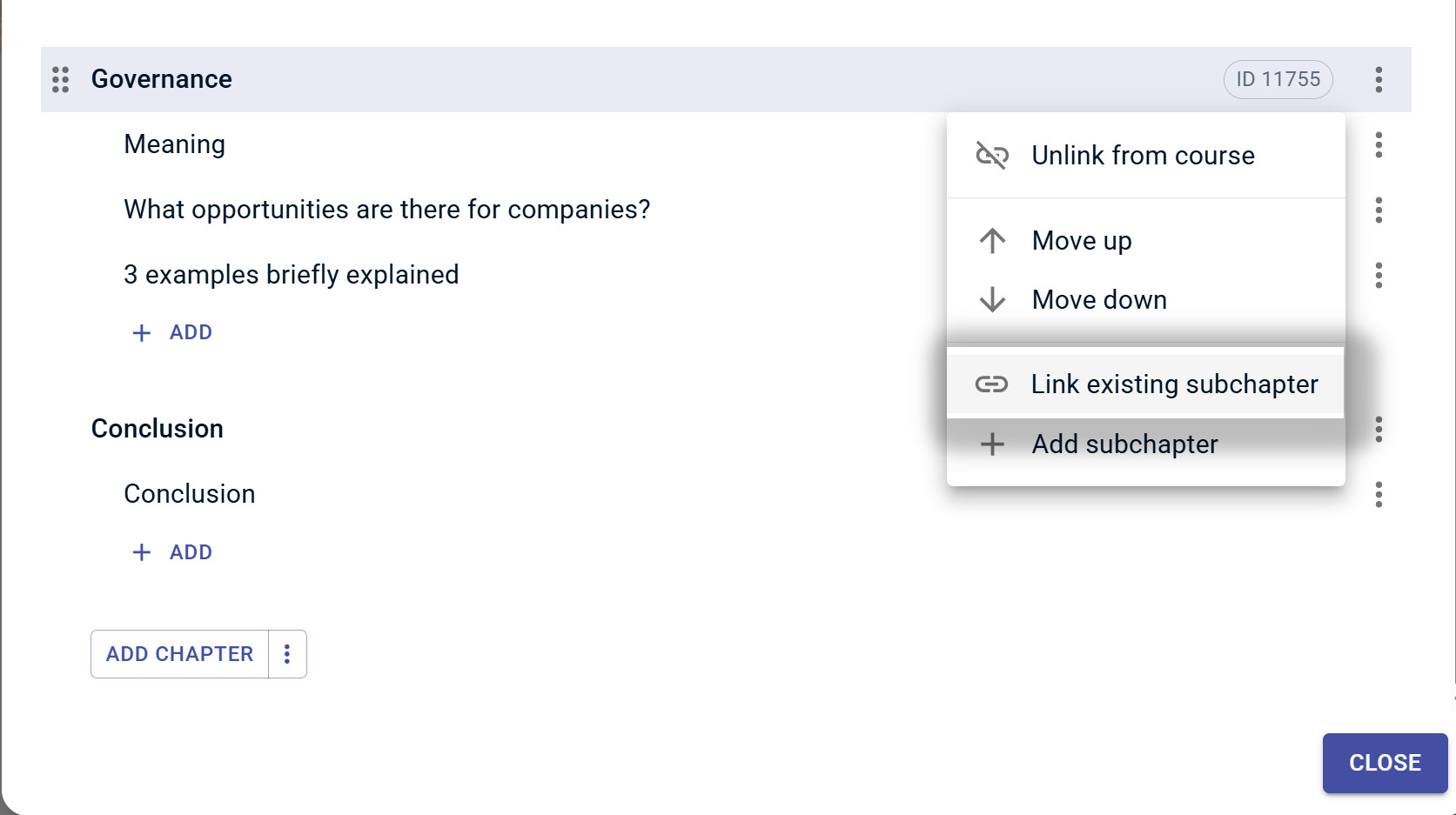
- Open the three-dot menu next to the newly added Learning Objective and select the option Link existing subchapter. In the popup that opens, you can search for the duplicated SCOs by title or ID and assign them to the Learning Objective and the course using Select.